Setup Guide

Stripe revenue tracking setup: see which marketing channels drive payments

Vincent Ruan
Vincent RuanFounder, Attrifast ·

Your Stripe dashboard shows total revenue. But it can't answer the question that matters: which marketing channel generated that revenue? This guide walks you through setting up Stripe revenue tracking by traffic source — from script tag to live dashboard — in under 5 minutes.

Updated March 2026 · 10 min read
TL;DR
  • Stripe shows total revenue but can't tell you which marketing channel generated it.
  • Four tracking methods compared: Stripe Dashboard (no channel data), GA4 (4-8 hr setup, partial), custom webhooks (2-5 days), and privacy-first attribution (2 min, full accuracy).
  • Revenue per Visitor (RPV) is the key metric — it shows the dollar value of each visitor by channel.
  • Setup takes 2 steps: paste a script tag and connect Stripe via OAuth. No webhooks or code needed.

What the Stripe dashboard doesn't tell you

Stripe is excellent at processing payments. It shows you gross revenue, net revenue, MRR, churn, and customer counts. But it was built as a payment processor, not a marketing analytics tool. There are four critical revenue metrics that Stripe cannot provide.

Revenue by traffic source

Stripe Dashboard

Not available

With attribution

Google Organic: $4,212 · Twitter: $1,780 · Ads: $960

Stripe processes payments server-side. It has no visibility into browser sessions, referrers, or UTM parameters.

Revenue per Visitor

Stripe Dashboard

Not available

With attribution

$1.80 from SEO · $4.50 from newsletter · $0.80 from ads

Stripe doesn't know how many visitors each channel sends. Without visitor counts, you can't calculate revenue efficiency.

First-touch channel attribution

Stripe Dashboard

Not available

With attribution

Customer first visited via LinkedIn Ad, returned via direct, converted on day 12

Stripe sees the payment but not the marketing journey that led to it.

Campaign-level revenue

Stripe Dashboard

Not available

With attribution

utm_campaign=spring-launch: $2,340 revenue from 12 conversions

UTM parameters exist in the browser. Stripe webhooks don't carry UTM data.

The blind spot

Stripe tells you how much money came in. It cannot tell you where that money came from. For any SaaS or ecommerce business spending money on marketing, this gap makes it impossible to calculate ROI by channel — which means budget decisions are based on traffic volume, not revenue.

4 ways to track Stripe revenue by channel

Before diving into the setup, here's how the available approaches compare. The right choice depends on your technical resources and what metrics you need.

Stripe Dashboard only
Revenue by channel

No

RPV

No

Setup time

0 min

Monthly cost

$0

GA4 + manual tagging
Revenue by channel

Partial

RPV

No

Setup time

4-8 hours

Monthly cost

$0

Custom webhook pipeline
Revenue by channel

Yes

RPV

No

Setup time

2-5 days

Monthly cost

$50-200

AttrifastRecommended
Revenue by channel

Yes

RPV

Yes

Setup time

2 min

Monthly cost

$0-29

Step-by-step: set up Stripe revenue tracking in 2 minutes

This walkthrough uses Attrifast as the attribution layer, but the concepts apply to any tool that connects browser sessions to Stripe payments.

1

Add the tracking script to your website

Paste a single script tag before your closing </head> tag. The 4KB script captures traffic source data — referrer, UTM parameters, landing page, and channel — for every visitor. No cookies are set, so no consent banner is needed.

<!-- Add to your <head> -->
<script
  defer
  data-tracking-id="your-tracking-id"
  src="https://api.attrifast.com/af.js"
></script>
2

Connect your Stripe account

Go to Settings → Integrations → Stripe and click Connect. This uses Stripe OAuth — Attrifast gets read-only access to your payment data. No API keys to copy, no webhook URLs to configure.

3

Wait for the first payment

When a customer completes a Stripe payment, Attrifast matches the Stripe customer to their original visitor session server-side. Within seconds, the revenue appears in your dashboard attributed to the marketing channel that brought them.

4

Read your Revenue per Visitor (RPV) dashboard

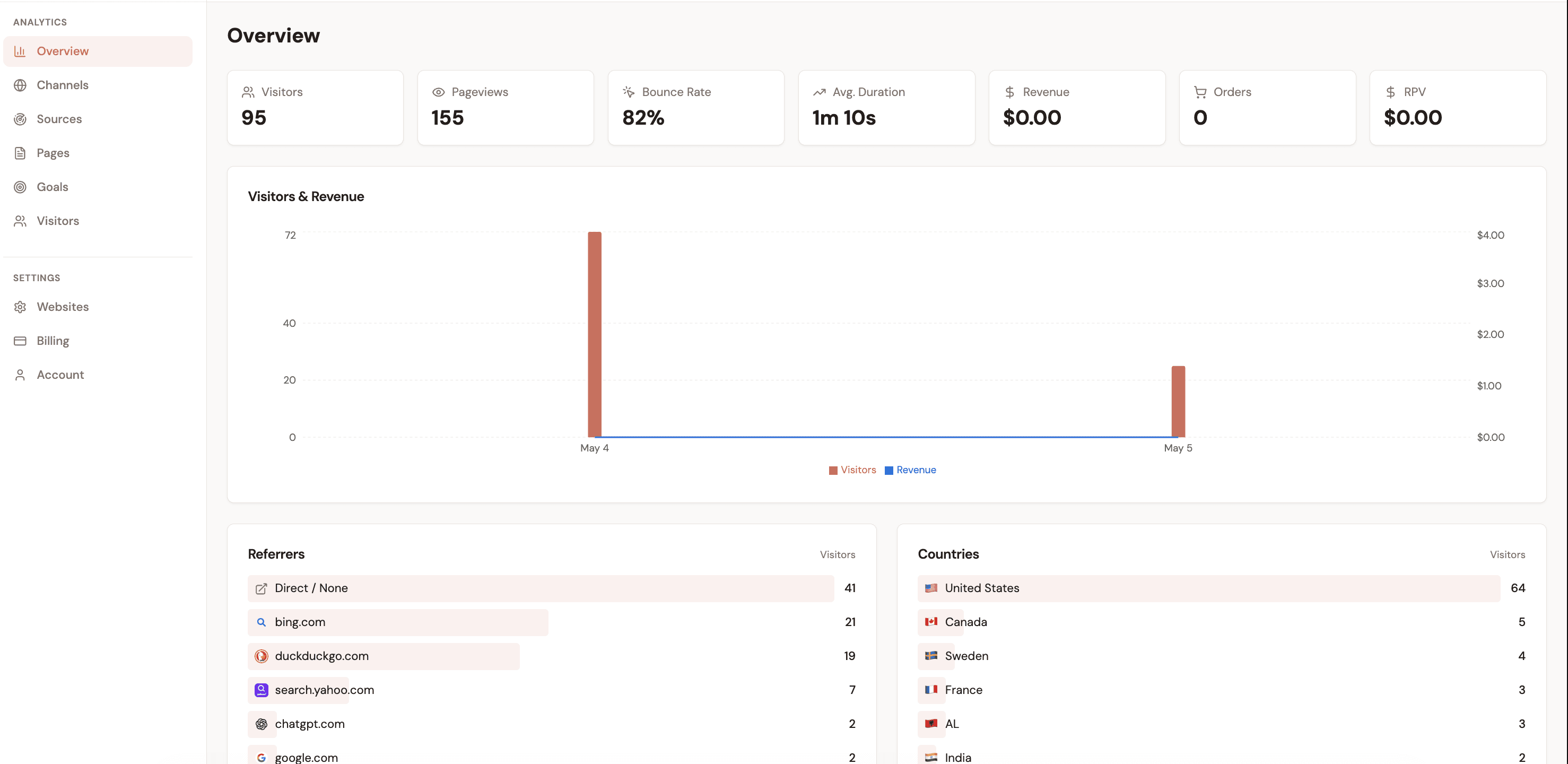
Open the Channels tab to see revenue broken down by traffic source. The RPV column shows the dollar value each visitor from that channel is worth — the single most actionable number for budget allocation.

That's the entire setup

No webhook configuration. No Measurement Protocol. No BigQuery. No developer time beyond pasting one script tag. The Stripe OAuth connection handles all payment data import automatically — including one-time charges, subscription renewals, refunds, and plan changes.

What your dashboard looks like after setup

Once the script is installed and Stripe is connected, here's the kind of data you see in the Channels view. This example is from a SaaS product with $19,562 in monthly revenue across 6 traffic sources.

Google Organic
Visitors

2,340

Revenue

$4,212

RPV

$1.80

Conv. Rate

2.1%

Twitter / X
Visitors

890

Revenue

$1,780

RPV

$2.00

Conv. Rate

1.8%

Product Hunt
Visitors

1,560

Revenue

$3,900

RPV

$2.50

Conv. Rate

3.2%

Google Ads
Visitors

1,200

Revenue

$960

RPV

$0.80

Conv. Rate

0.9%

Direct
Visitors

3,100

Revenue

$6,820

RPV

$2.20

Conv. Rate

2.8%

Newsletter
Visitors

420

Revenue

$1,890

RPV

$4.50

Conv. Rate

5.1%

The insight that changes budget decisions

Look at the RPV column. Google Ads sends 1,200 visitors but generates only $0.80 per visitor. Newsletter sends only 420 visitors but generates $4.50 per visitor — 5.6x more revenue-efficient. Without Stripe revenue tracking by channel, Google Ads looks like a top performer (high traffic). With it, you see Newsletter is where to double down.

What to do with this data

  • Scale high-RPV channels: Newsletter ($4.50 RPV) and Product Hunt ($2.50 RPV) deserve more investment.
  • Investigate low-RPV channels: Google Ads ($0.80 RPV) is sending traffic that doesn't convert. Test different keywords, landing pages, or pause entirely.
  • Track over time: RPV fluctuates. Check weekly to catch trends before they cost money.

Tracking subscription revenue from Stripe

If you run a SaaS business with monthly or annual subscriptions, one-time payment tracking only tells half the story. The initial $29 payment matters — but so do the 11 subsequent renewals that turn it into $348 of annual revenue. Effective Stripe revenue tracking must handle the full subscription lifecycle.

Initial subscription payment

checkout.session.completed

Attributed to the marketing channel that brought the visitor. If a customer first arrived via a Google Ad and signed up for a $49/month plan, the first $49 is attributed to Google Ads.

Monthly renewals

invoice.payment_succeeded

Each renewal is attributed to the same original channel. The second, third, and twelfth payment all count toward Google Ads revenue — building a true LTV picture per channel.

Plan upgrades and seat expansions

customer.subscription.updated

When a customer upgrades from $49/month to $99/month, the revenue increase is attributed to the original acquisition channel. This shows which channels bring customers who expand.

Refunds and chargebacks

charge.refunded

Revenue adjustments are subtracted from the attributed channel. If a Google Ads customer requests a refund, your Google Ads revenue accurately reflects the net amount.

The result: you see not just which channels acquire customers, but which channels acquire customers who stay and grow. This is the difference between optimizing for signups and optimizing for revenue. For more on acquisition attribution models, see First Touch vs Last Touch Attribution.

5 mistakes that break Stripe revenue tracking

Even with the right tools, these mistakes create gaps in your revenue data.

Relying on Stripe metadata alone

Some teams store UTM parameters in Stripe metadata via client_reference_id. This works for direct payment links but fails completely when customers browse your site before paying, start a trial, or return days later. At best, you capture 20-30% of attributions.

Tracking signups instead of payments

Counting trial signups per channel is not revenue tracking. If Google Ads drives 100 trial signups but only 5 convert to paid, while organic drives 30 signups with 15 conversions, the channel with fewer signups is actually 3x more valuable. Track the payment event, not the signup.

Ignoring test mode transactions

Stripe test mode payments can pollute your analytics if your tracking tool doesn't filter them. Verify that your setup only processes live mode webhook events (event.livemode === true).

Not connecting recurring payments to the original channel

If you only track the first payment, you miss the 80-90% of subscription revenue that comes from renewals. A channel that brings high-churn customers looks the same as one that brings loyal customers. Track lifetime revenue per channel, not just first-payment revenue.

Missing refunds and chargebacks

Revenue tracking without refund tracking overstates channel performance. A channel with a 15% refund rate is significantly less valuable than one with a 2% refund rate — but you can't see this without tracking charge.refunded and charge.dispute.created events.

When should you set up Stripe revenue tracking?

The best time to set up revenue tracking is before you start spending on marketing. The second best time is now. Here's a simple decision framework.

You spend money on ads

Set up immediately

Without revenue tracking, you cannot calculate ROAS (Return on Ad Spend) by channel. You are flying blind on budget allocation.

You create content for SEO or social

Set up this week

Content marketing takes months to compound. If you start tracking now, you'll have revenue data per article/channel by the time you need to decide what to create next.

You have a referral or affiliate program

Set up before your next campaign

Referral attribution is notoriously unreliable with UTMs alone. Server-side tracking catches referral revenue that cookie-based tools miss.

You're pre-launch

Set up on launch day

Your first 30 days of traffic is the most valuable data you'll ever have. Don't lose those attribution signals — they tell you which launch channels convert.

Key takeaways

1Stripe's dashboard shows total revenue but cannot break it down by marketing channel. Revenue by channel requires an attribution layer between your website and Stripe.
2The fastest setup is a script tag + Stripe OAuth connection. No webhooks to build, no GA4 Measurement Protocol, no data warehouse.
3Revenue per Visitor (RPV) is the key metric. It tells you which channels are revenue-efficient, not just which ones send the most traffic.
4Subscription businesses must track renewals, upgrades, and refunds — not just initial payments — to get accurate channel-level LTV.
5Set up revenue tracking before spending on marketing. Retroactive attribution is nearly impossible; you can only track forward.

Stripe webhook events used by attribution tools (relative usage)

Source: Stripe webhooks reference + Stripe Billing webhook documentation

Track Stripe revenue by marketing channel

One script tag. One Stripe connection. See which channels drive payments in under 2 minutes.

Start tracking revenue →

Loved by 500+ users